
Articles ·
How to fix wrong dates on photos on a Mac
Scans, WhatsApp photos or a camera with the wrong clock: how to set the correct capture date on many photos at once.
You open your photos and the 2015 trip shows up in March 2023. The usual suspects:
- Scanned photos carry the date they were scanned, not when they were taken.
- Photos from WhatsApp and other messaging apps lose their capture date and keep only the date you received them.
- A camera with the wrong clock, or one still set to your home time zone while you were abroad.
Inside Apple Photos
If the photos are already in your Photos library, on a Mac you select them and choose Image → Adjust Date and Time. It works, but only inside the library. It doesn’t help with photos in folders, on an external drive or in the cloud.
With Iris: on the files themselves
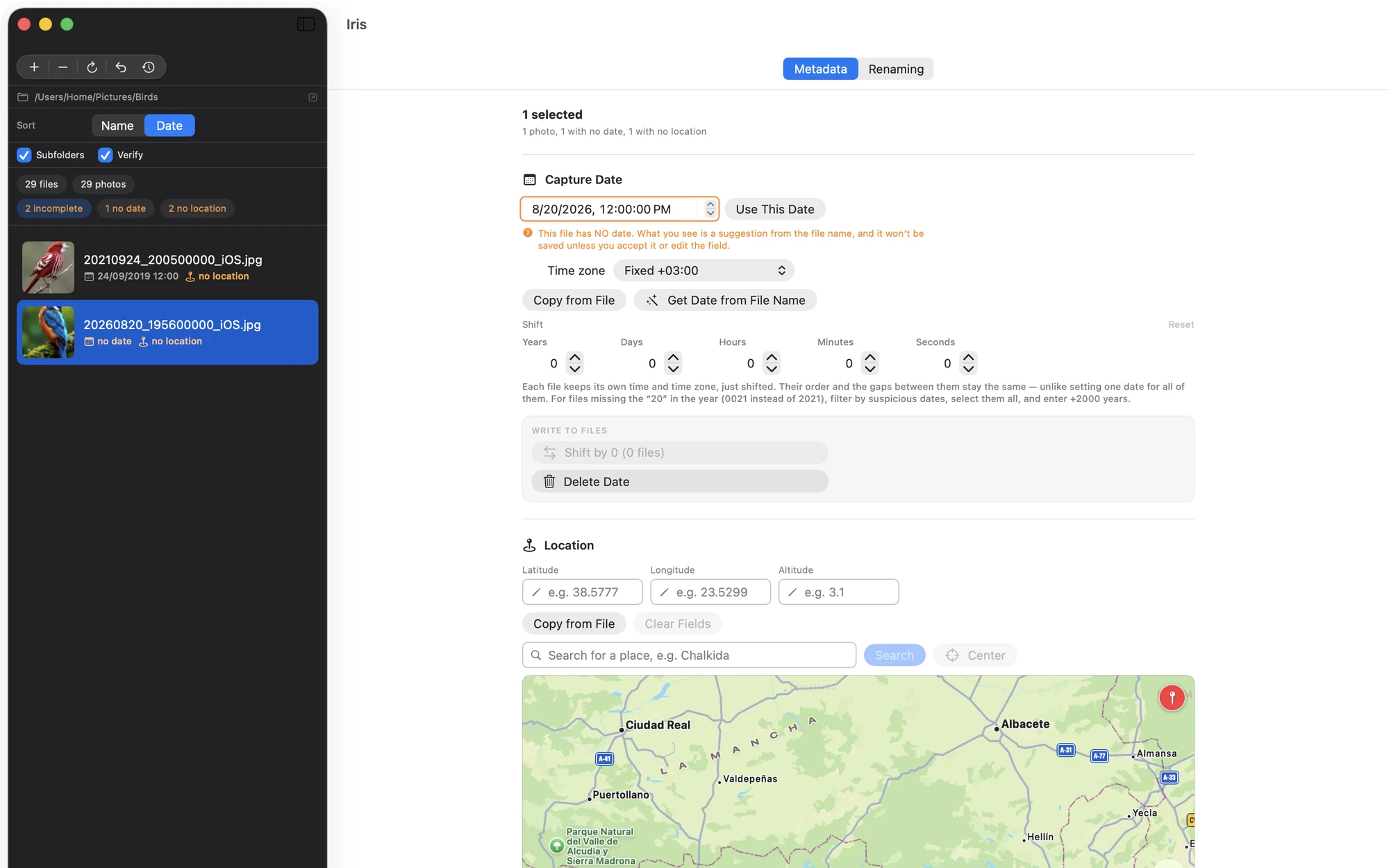
Iris opens folders of photos and videos and writes the correct date inside each file. That way every app sees it correctly afterwards: Photos, Apollo, Google Photos, the Finder.
- Finds what’s missing: shows which photos have no capture date, and suggests one from the file name, for example
IMG-20190814-WA0012.jpg→ 14 August 2019. - Shift the time on many at once: if the camera was 3 hours behind, fix them all in one go.
- Works on videos too.
- Every change can be undone, and nothing is written unless the file opens correctly.
A small tip
Before big changes, keep a copy of the folder. Iris has undo, but a backup never hurts.