
Articles ·
How to remove the location from a photo before you share it
Any phone photo can reveal where it was taken, even your home address. How to strip it on iPhone and Mac.
A phone photo isn’t just a picture. It can contain the coordinates of where it was taken, the time and the phone model. Photograph something you’re selling in your living room, send the file, and the other person may see where you live.
Many social networks strip this data on upload. Email, cloud links and many classified ad sites don’t always.
On iPhone
When you share a photo, tap Options at the top of the share sheet and turn off Location. It applies to that one share.
On Mac, with Photos
When you choose File → Export, untick location information. The exported file has no location.
With Iris: strip everything
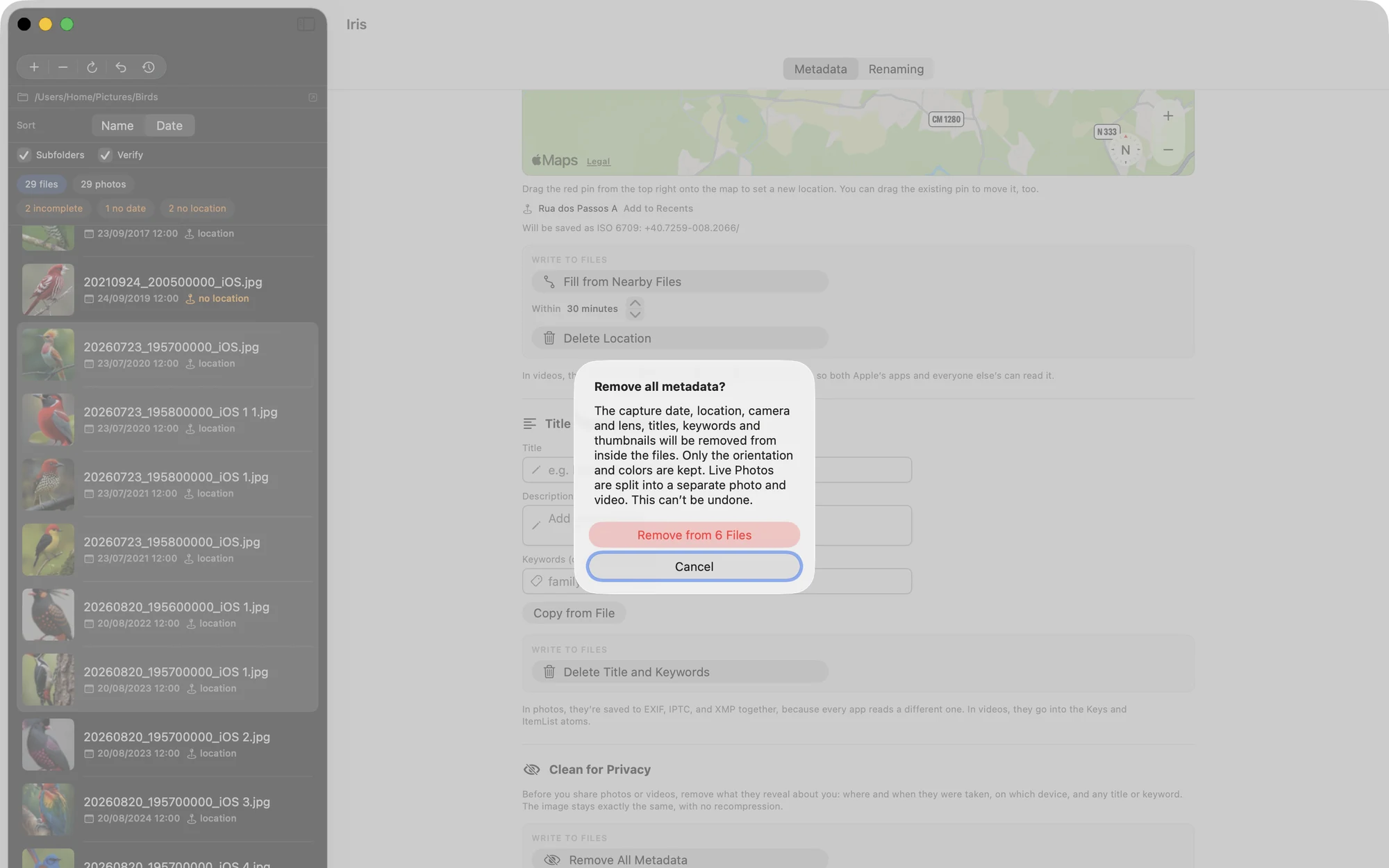
Clean for Privacy in Iris removes all metadata from photos and videos, not just the location: date, device, faces, everything. It keeps only what the image needs to look the same, namely orientation and colour.
- Works on many files at once, and on videos.
- After cleaning it re-reads the file, and if anything that should be gone is still there, it leaves the original untouched.
- It all happens locally on your Mac, nothing is uploaded.
A small tip
The clean can’t be undone, on purpose: undo would mean keeping a copy of exactly what you wanted removed. Run it on copies of your photos, not on the originals in your archive.