
Articles ·
How to add a location to photos on a Mac
Photos from a camera without GPS, or scans: how to give them a location in bulk, so they show up on the map.
Phone photos have a location. Photos from a camera without GPS, or scans of old prints, don’t. So they’re missing from the map and from your trips, and a search for “Rome” never finds them.
Inside Apple Photos
In Photos on a Mac, you open the Info window of a photo and type a location. For a few photos that’s fine. For three hundred from one trip, or for files outside the library, it gets tedious.
With Iris: one search for all of them
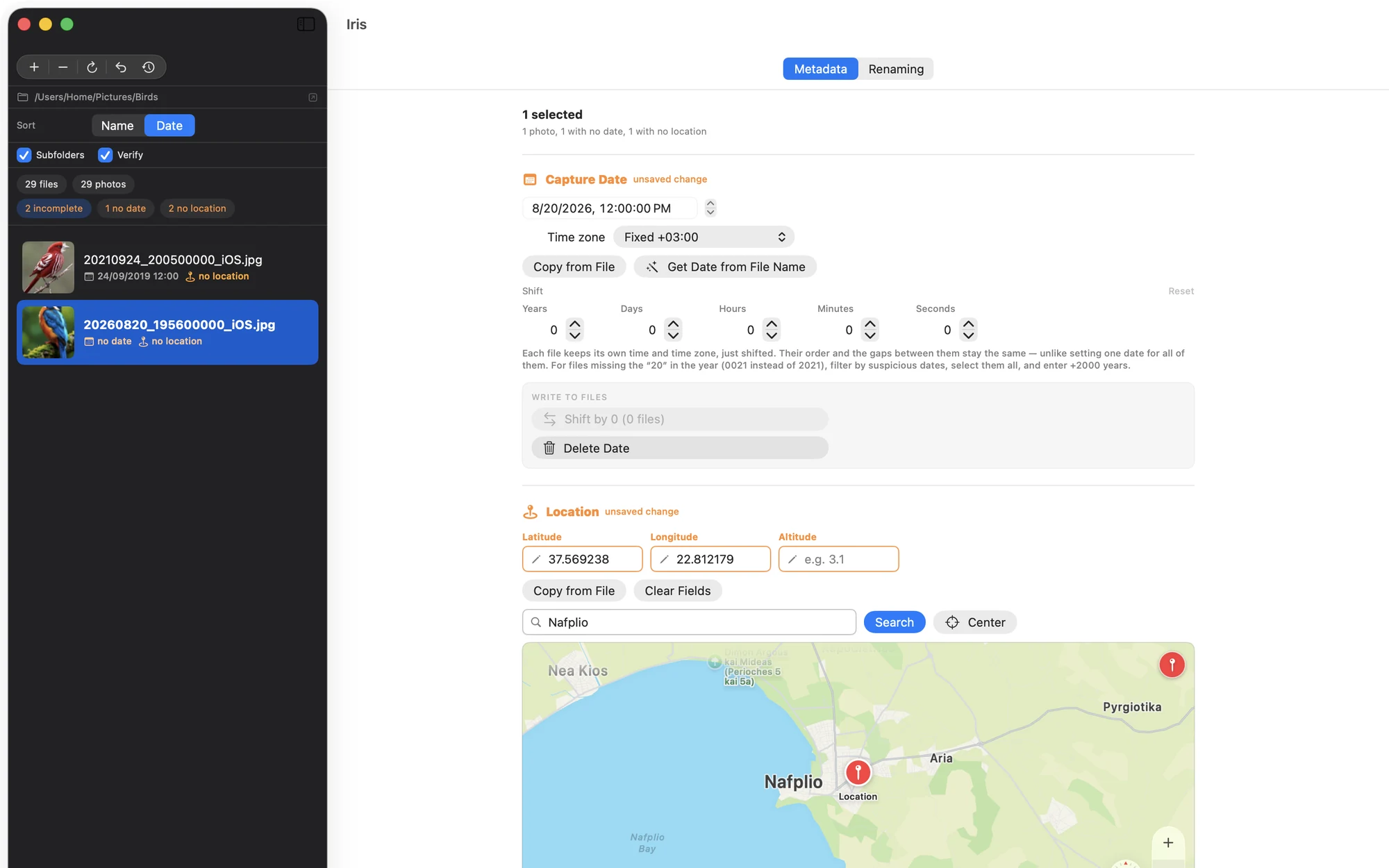
In Iris you select the photos, search for the place on the map, say “Nafplio”, and the location is written inside each file. From then on every app sees it: Photos, Apollo, the Finder.
- See at once which photos have no location.
- Works on photos and videos.
- The place name is filled in automatically, using Apple’s service.
- Every change can be undone.
A small tip
If you had both a phone and a camera on a trip, sort by time: your phone photos tell you where you were each day, so you know what to give the camera photos.